BluePencil
How it works
Everything below is a photograph of the live service. You do structural work in the browser and prose work in Microsoft Word; BluePencil keeps the two in step and remembers every round.
- BrowserUpload your sources, set the outline, approve the plan, request a draft
- WordPull the draft in, edit with tracked changes, send it back
- BrowserSee exactly what changed, approve — that text becomes authoritative
Browser
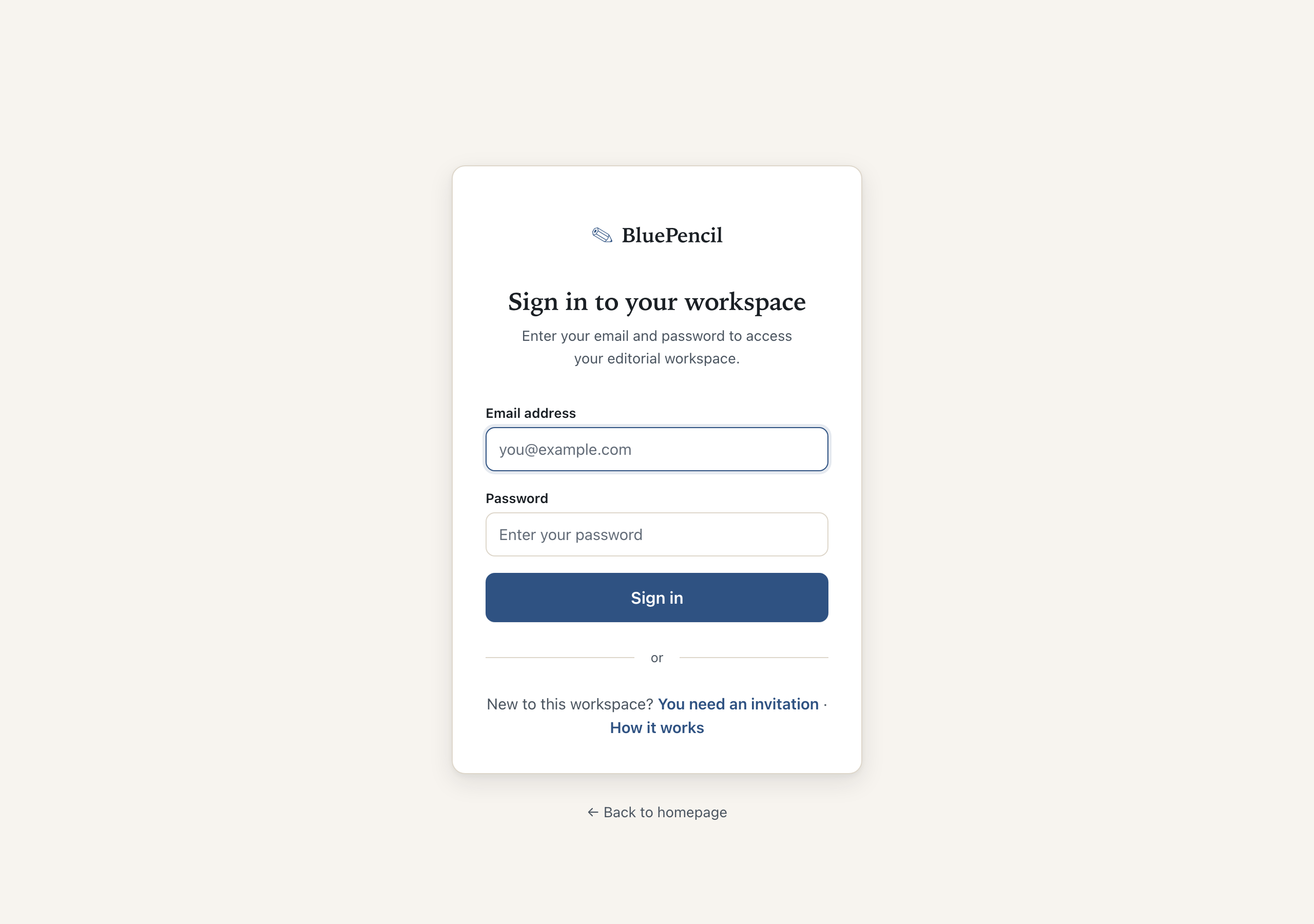
Sign in
Go to bluepencilbooks.com, enter your email and password, choose Sign in.
Browser
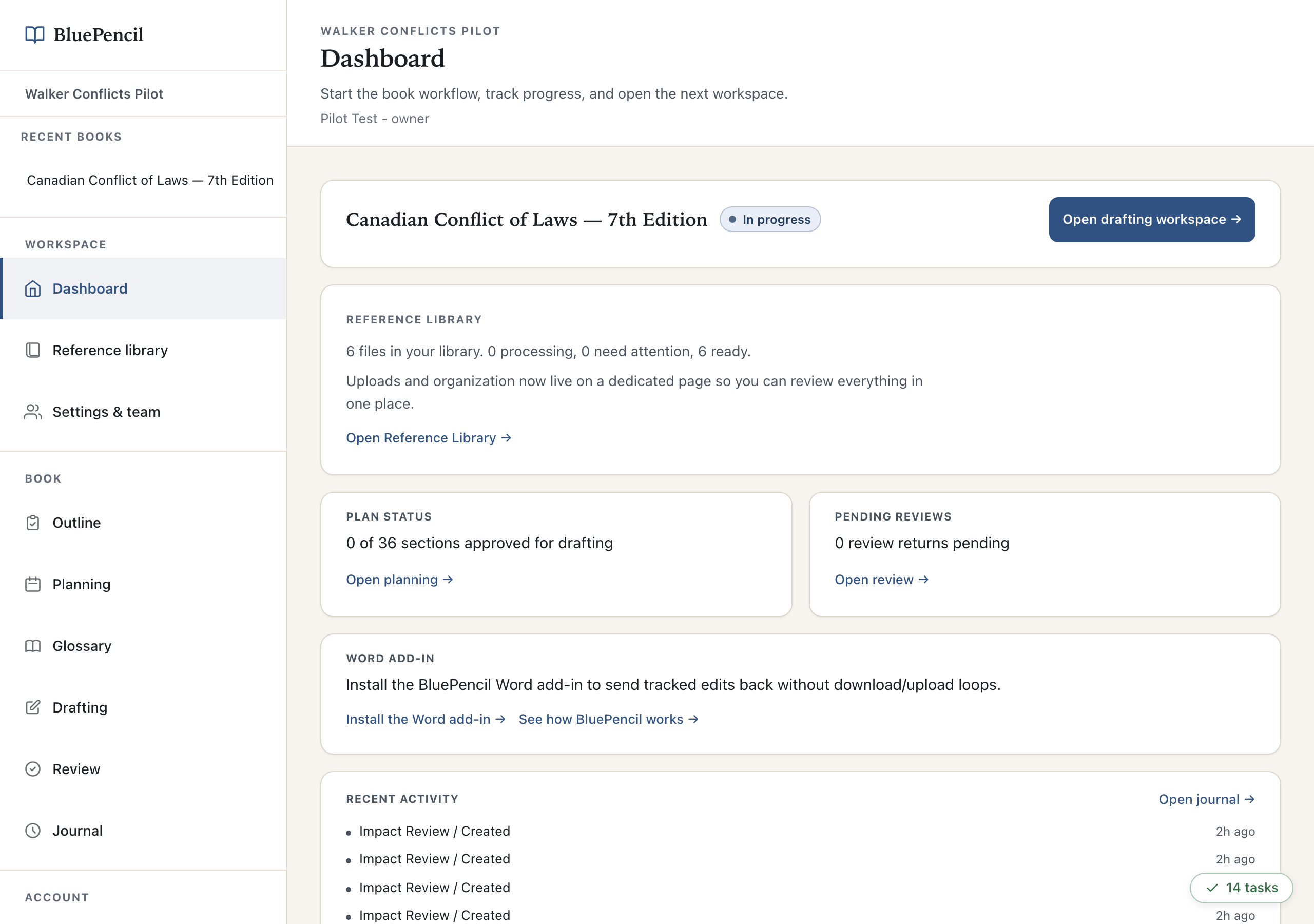
Find your way around
The Dashboard puts your book first, with the next thing to do underneath. The sidebar is the whole product: sources, then outline, planning, glossary, drafting and review, with the Journal recording every decision.
Word · once
Install the Word add-in
On the Dashboard, choose Install the Word add-in. Download the file the page gives you, then follow the section for your version of Word. The quickest route, which works on any computer, is Word in your browser.
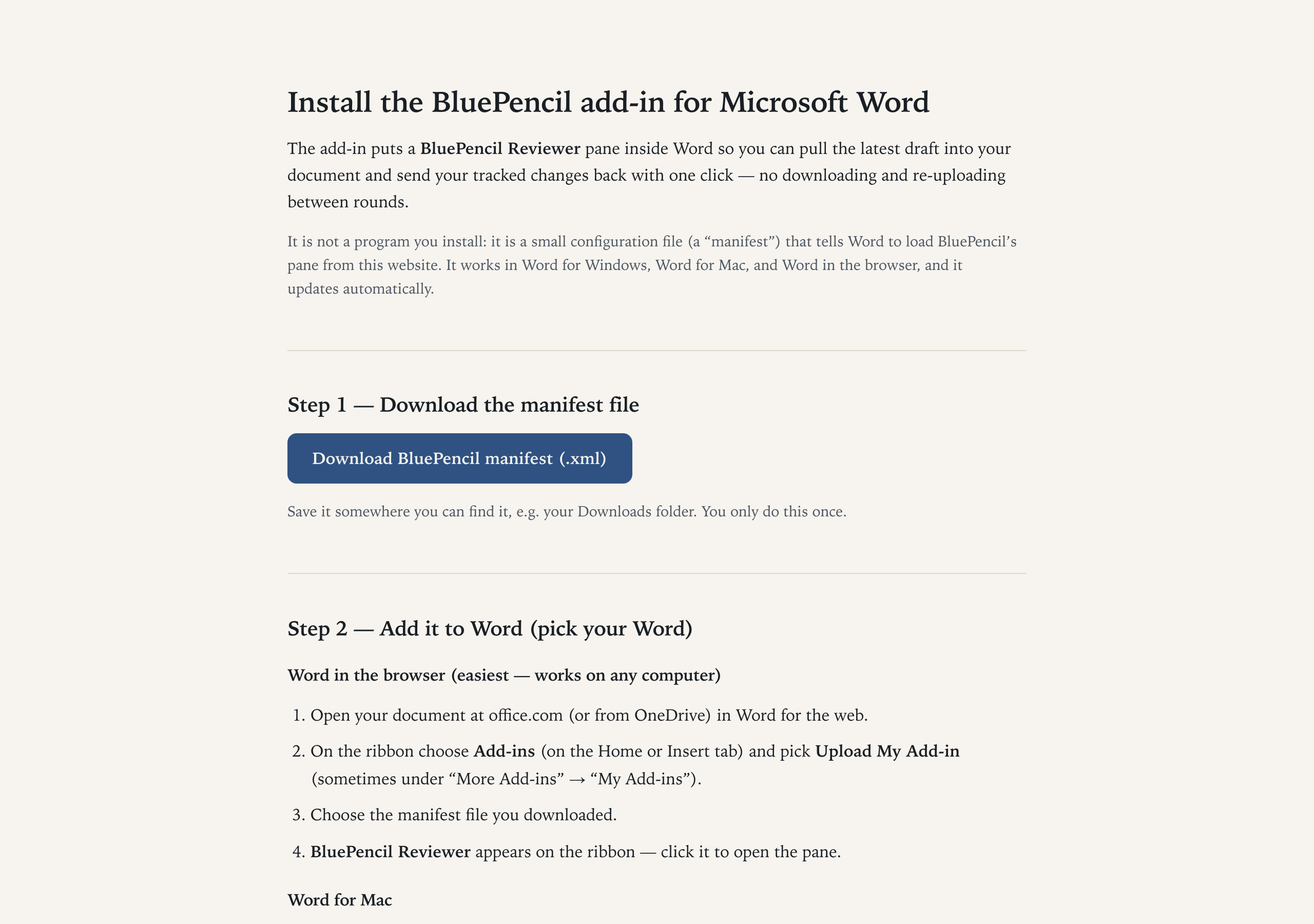
Need it now? Open the installation page.
Browser
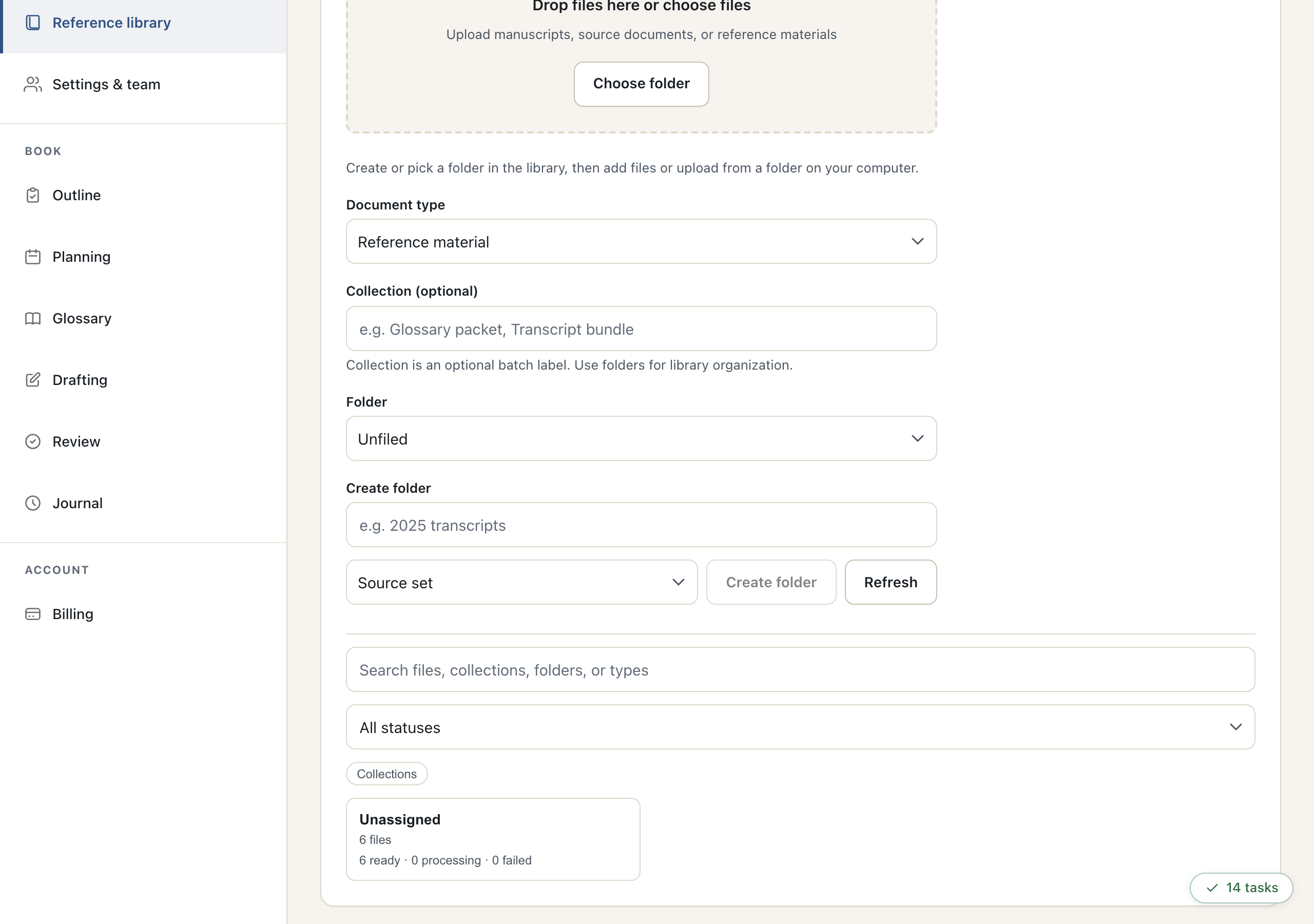
Add your source materials
Choose Reference library and drop in your files — Word documents and PDFs both work. Each one is converted and indexed; you will see it move from processing to indexed. A long chapter takes a few minutes.
Browser
Set the outline
Paste your table of contents, using # for a part and ## for a chapter. Every chapter becomes a section — the thing you draft, review and approve.
# Part II: Jurisdiction in Civil and Commercial Matters
## Chapter 3: The Defendant's Court
## Chapter 4: Connections Between the Matter and the Forum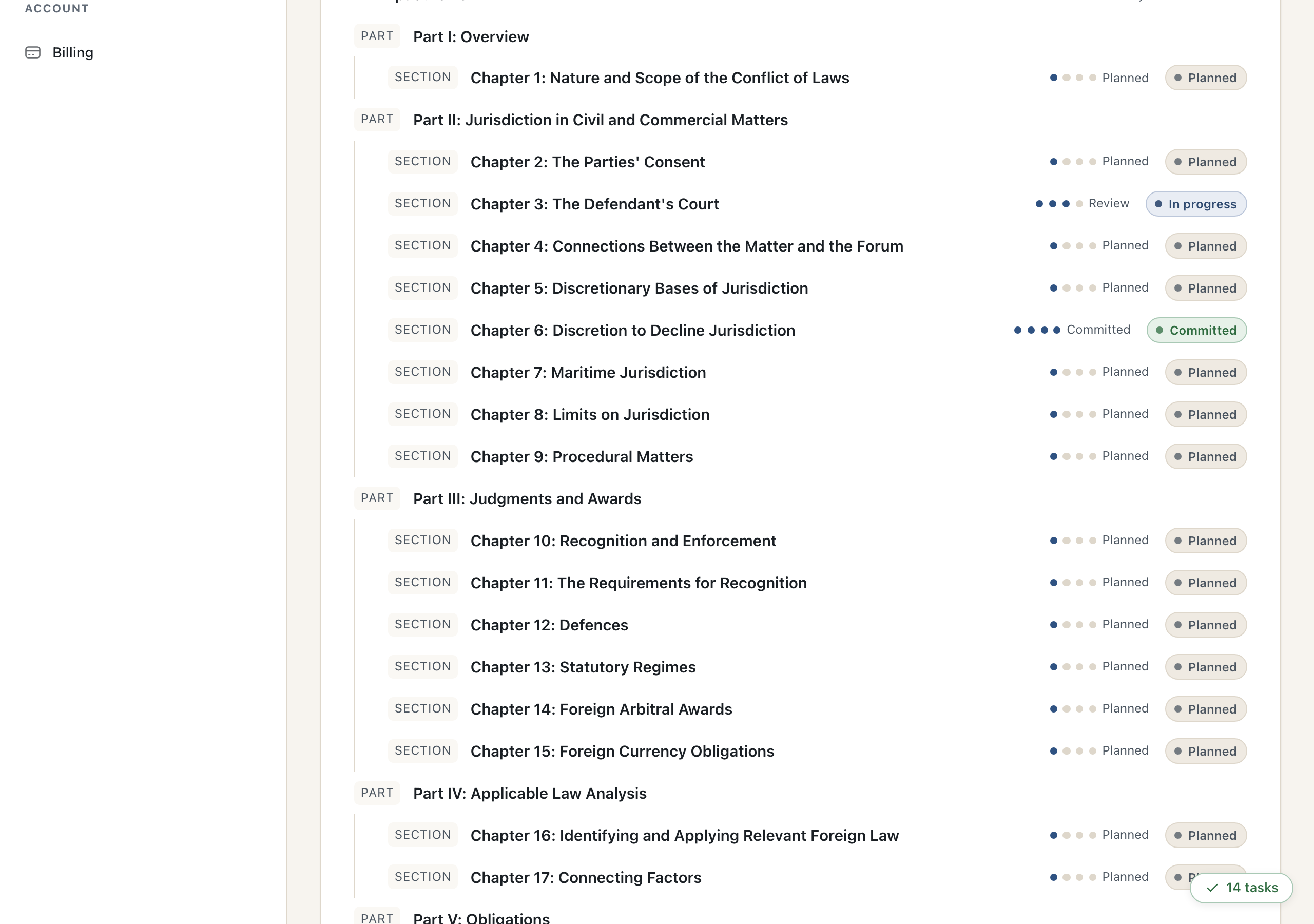
Browser
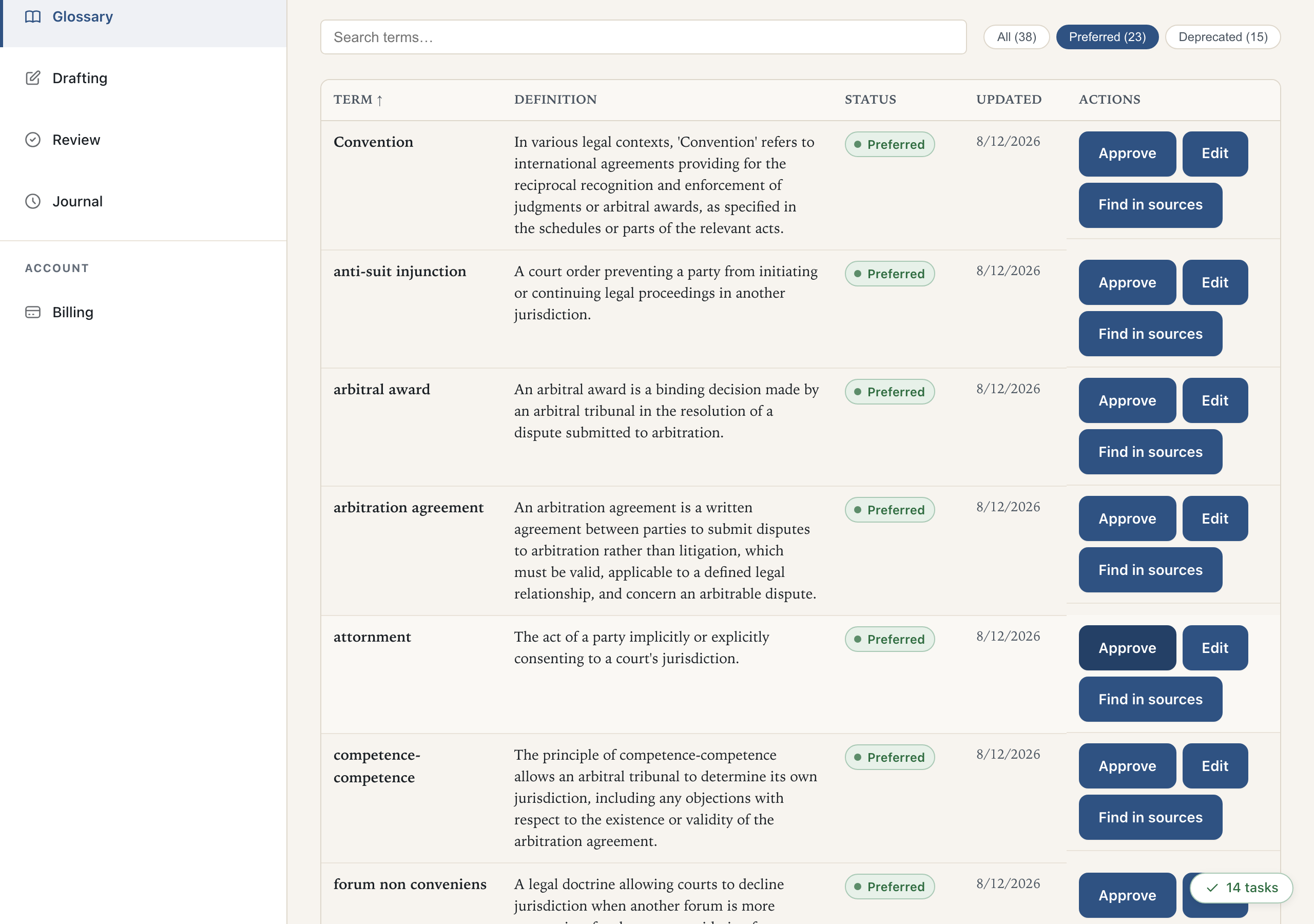
Build the glossary
Choose Extract terms. BluePencil reads your sources and proposes the terms of art with definitions drawn from your own material. Approve the ones you want used consistently and correct any definition that is not quite right.
Browser
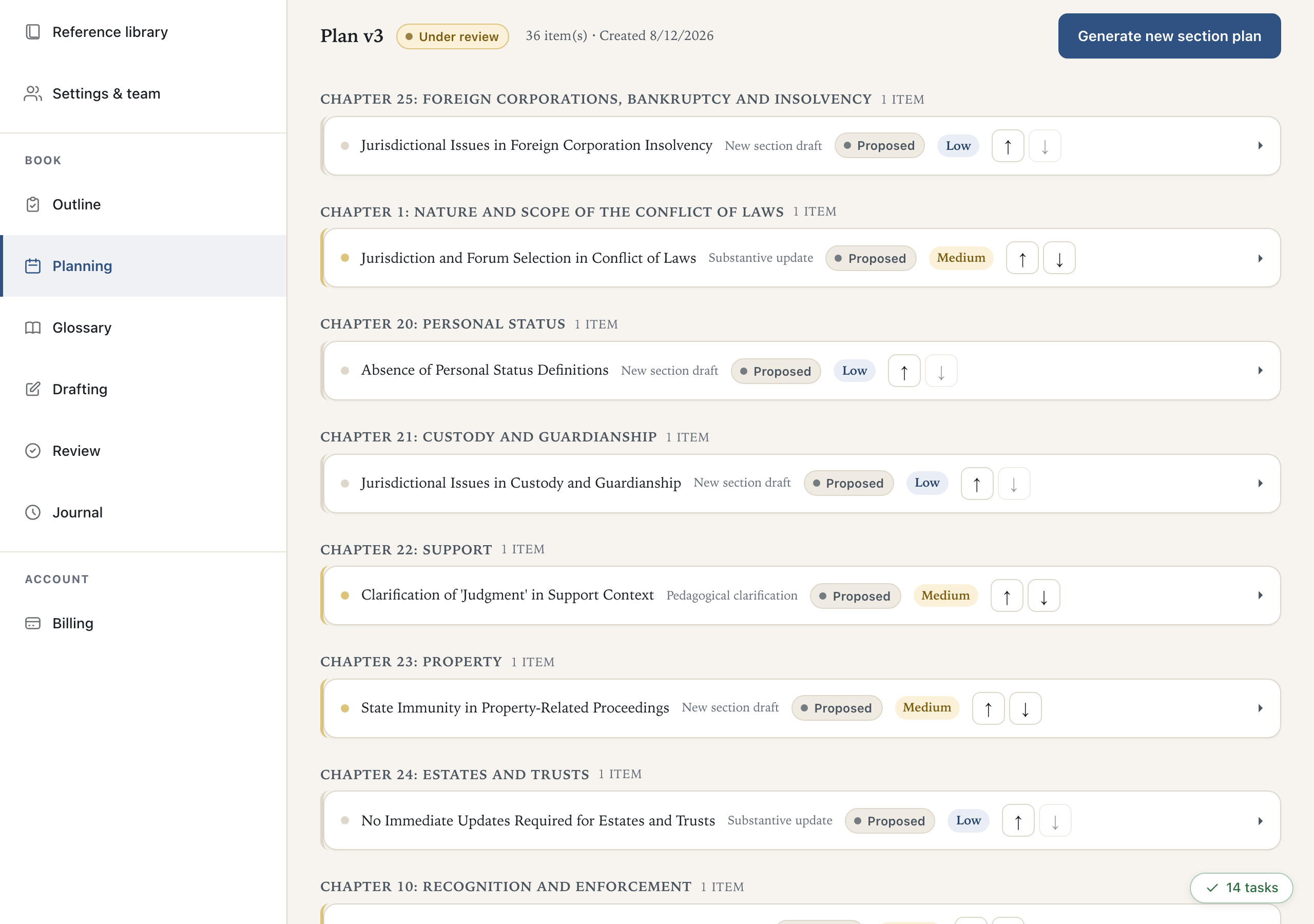
Generate the plan
You get a prioritised list of what each section needs, grounded in what your sources actually say. Read it as a proposal and approve what you agree with.
Browser
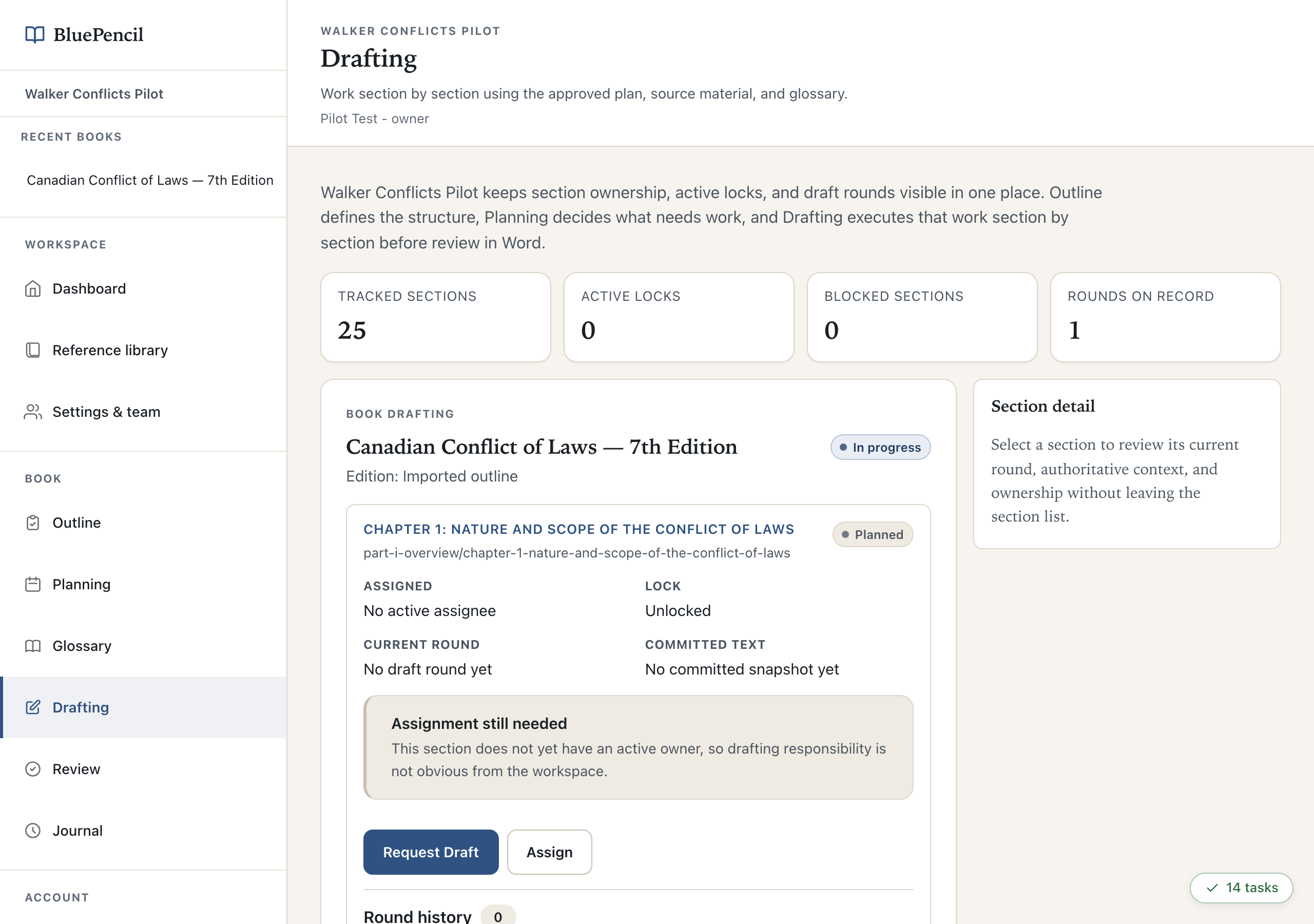
Request a draft
Pick a section and choose Request draft. It takes a couple of minutes, then the section moves to Ready for review.
You draft one chapter at a time, on purpose. BluePencil never drafts the whole book by itself — chapters stay Planned until you ask for them. So a book part way through looks exactly like this: one or two chapters written and reviewed, the rest waiting. That is the normal state, not a problem.
Browser
Send it to Word
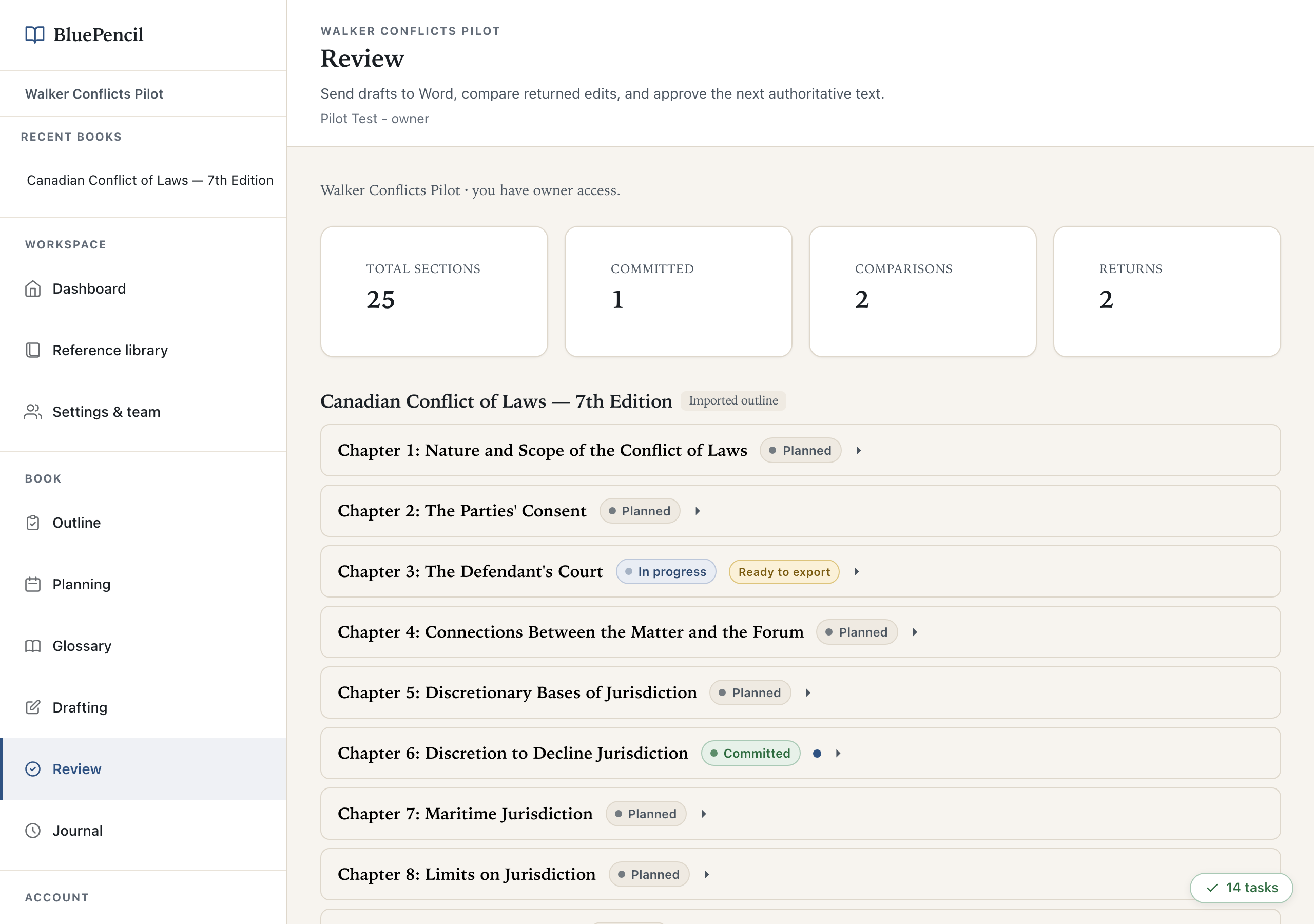
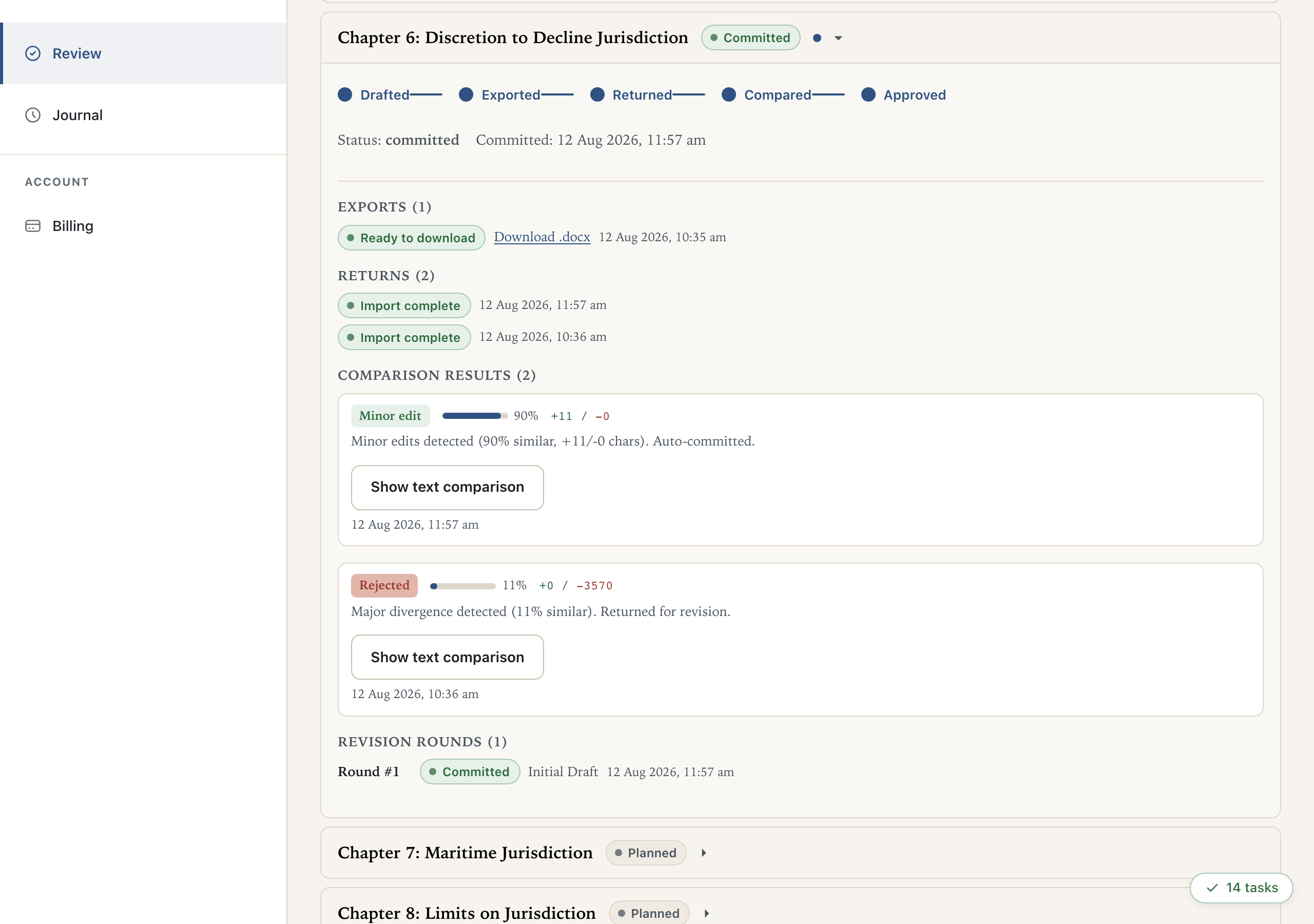
Choose Review. Every chapter shows where it stands. Open one and you see the whole loop — drafted, exported, returned, compared, approved — with the actions for wherever you are.
Word
Review in Word
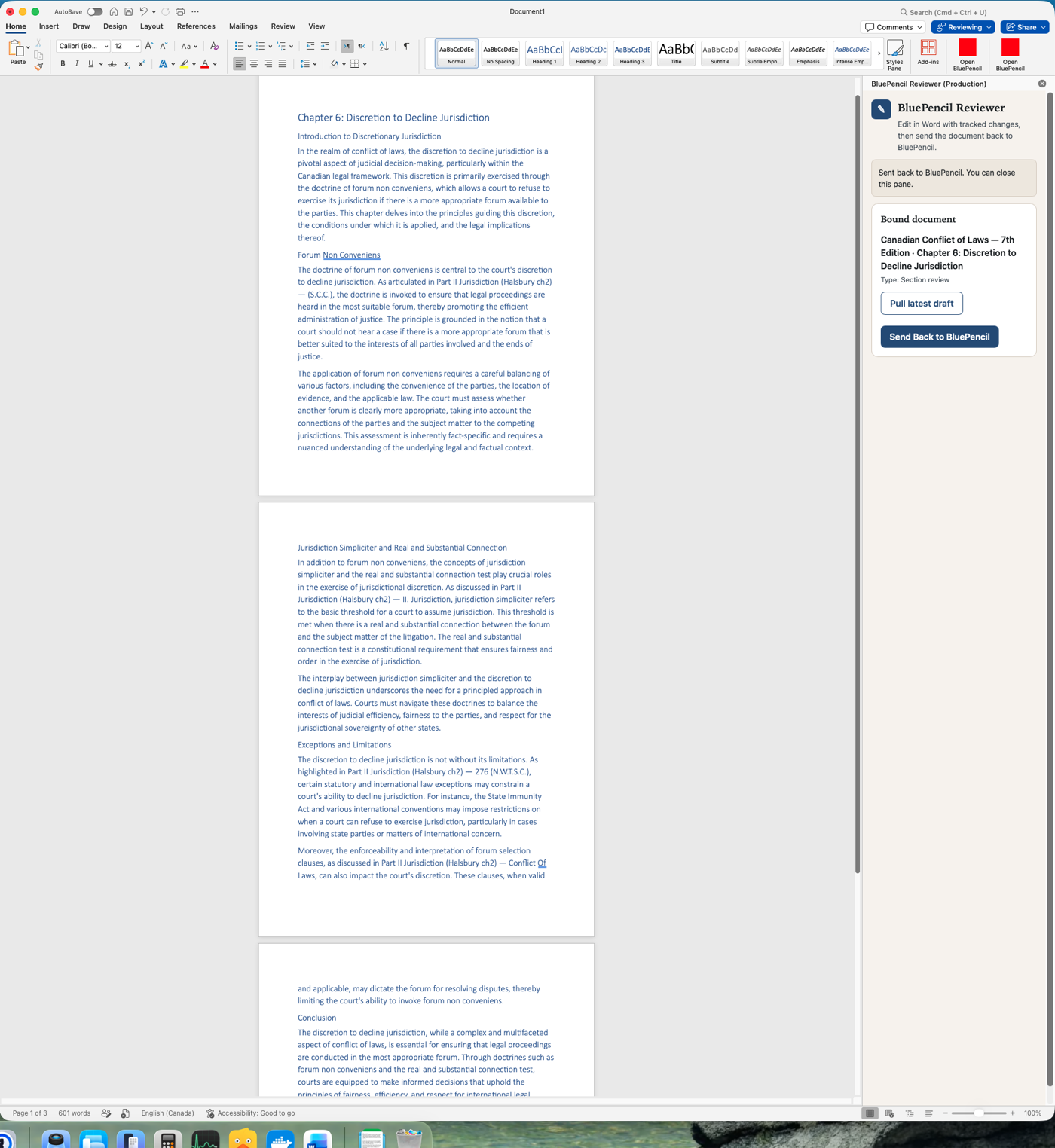
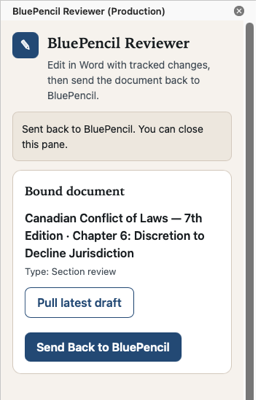
Open the BluePencil Reviewer panel from the ribbon. It recognises the document and shows which chapter it belongs to. Edit exactly as you always would, using Word’s own tracked changes and comments — rewrite freely, that is the point — then choose Send Back to BluePencil.
After the first round you can stay in Word. Pull latest draft brings each new round into your document as a redline against what you had.
Working with an assistant? Put the document on OneDrive or SharePoint and you can both edit at once — Word handles that natively. BluePencil records who made each change and captures comments as review notes, so it is always clear whose edits are whose.
Browser
Approve the section
Back in Review, BluePencil shows what changed: each edit and comment attributed by author, a before-and-after comparison, and how substantial the revision was. If it is right, choose Approve section — that text becomes the authoritative version of the chapter, later drafting builds on it, and the Journal records the decision.
If it needs another pass, request another draft round instead. The section keeps its whole history.
Browser
Add your colleagues
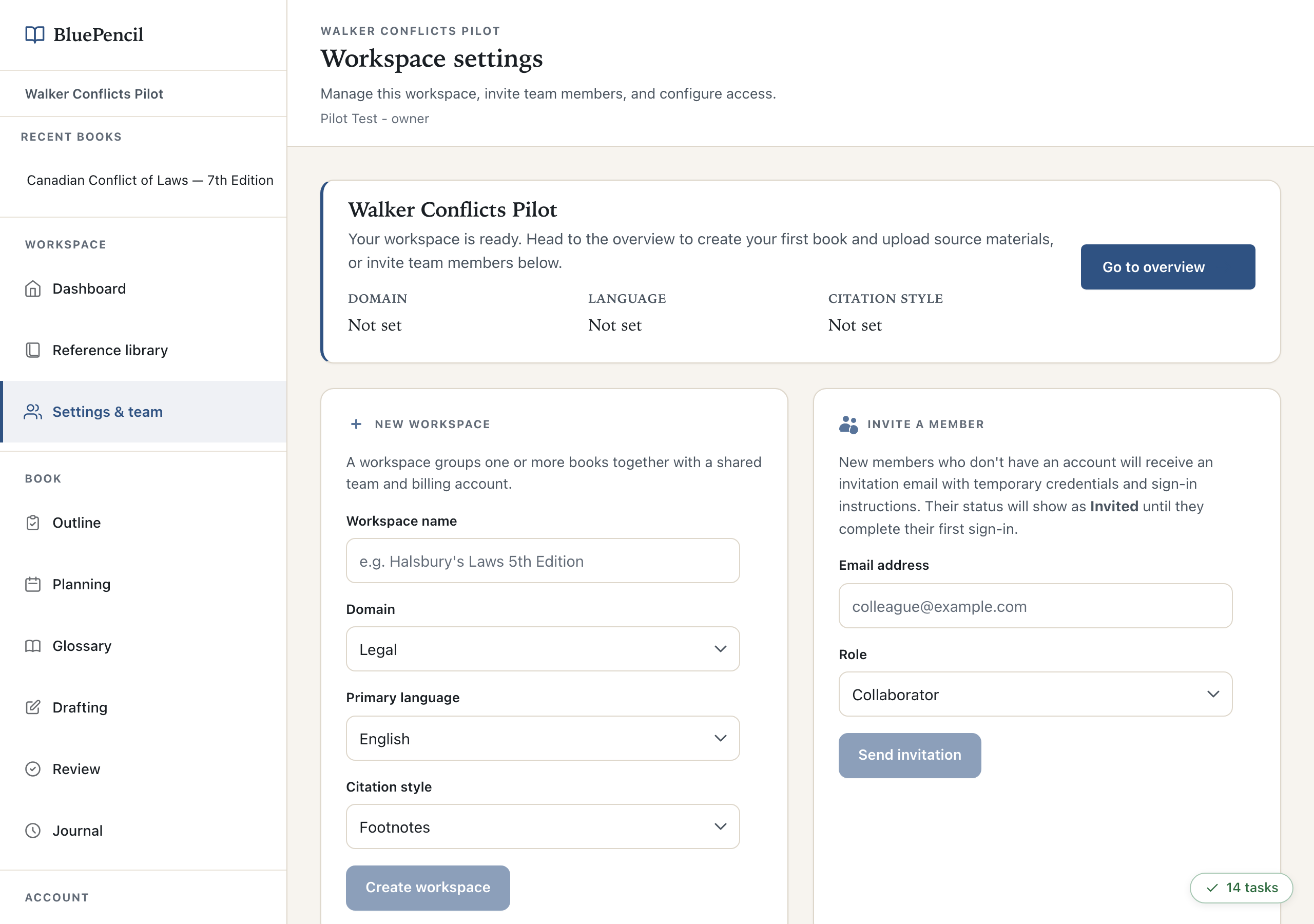
In Settings & team, enter an email address and pick a role. Owners have full control including approving sections; collaborators can draft and send back edits but cannot approve. They receive an email with a temporary password and a link.
When something goes wrong
- A step failed
- The reason is shown. Retry from the same place — it genuinely re-runs the work.
- The draft is wrong or thin
- Normal. Edit it in Word and send it back; your corrections inform the following rounds.
- The panel says you are not signed in
- Sign in inside the panel — it uses the same account as the website.
- The add-in is not on the ribbon
- Revisit the installation page. On Word for Windows, use Word in the browser or ask IT to deploy it centrally.
- You are blocked and cannot use the add-in
- Review has a fallback: download the .docx, edit it, and drag it onto Return reviewed document. The add-in remains the intended way to work.